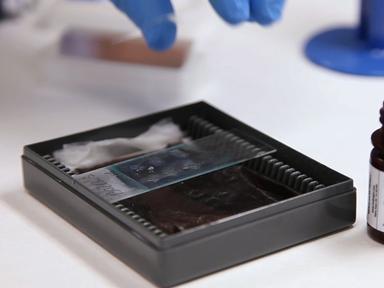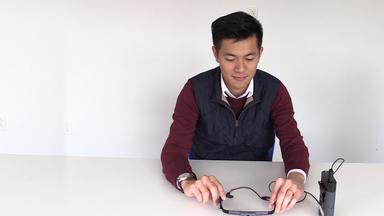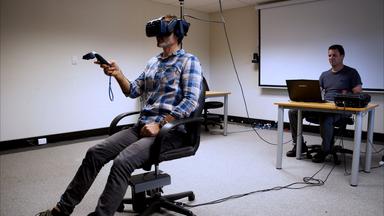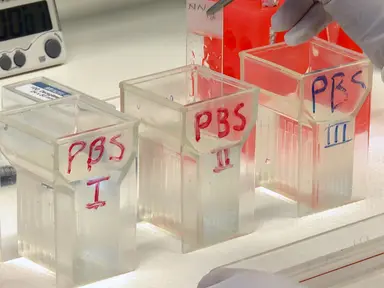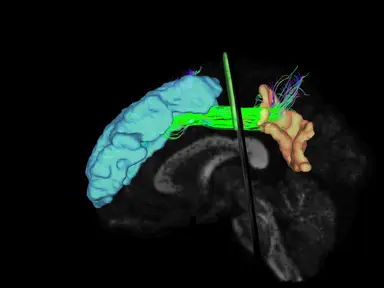
We developed a method for recording human interactions with 3D virtual objects in real time. Our approach involves linking rotation data for the manipulated objects of behavior measures like Eye-Tracking. This let us gain deeper insights on the cognitive process behind the task rather than just the final outcome.
The following topics are considered. The relationship between mental rotation and eye movements, individual differences, applications and practical implications, methodological advancements, cognitive models and theories, developmental and clinical perspectives, and neurocognitive mechanisms. This work contributes on the methodological front.
It appears that there is no straightforward approach to integrating eye activity data with rotation trajectories. In this research, we aim to contribute to filling this gap. A straightforward and cost-effective experimental setup was devised to map conventional Eye-Tracking data over 3D models with rotational tests.
Our future research will focus on the advancement of our method for the study of individual differences in the interpretation and interaction with virtual and physical three-dimensional objects. For example, we will examine the case for students and experts in chemistry. To begin, launch an Eye-Tracking software on a computer.
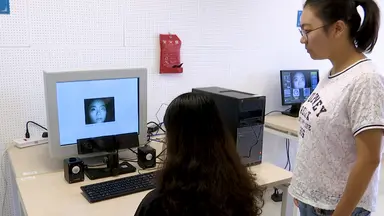
Open the iRT webpage, fill in a Name and Email, and press Next. Seat the participant in a comfortable position before the Eye-Tracking system. Move the chair to ensure an optimal distance between the participant and the camera.
Now, adjust the camera's height to correctly capture the participant's pupils. Press Calibrate to begin calibration. Ask the participant to look at a series of dots on the screen, and follow the dots movement without moving their head.
After the calibration process, a real time display of the captured screen with gaze data can be seen in the primary display window. Click on the Gaze Video icon in the main menu to display the user's face captured by the eye tracker, then click on Start Record to begin the experiment. Open the previously opened iRTs window and ask the participants to click on the Go button, following which they will have to rotate the object on the right until it closely matches the one on the left.
Click Done to conclude the rotation, and to repeat this process until all tasks are concluded. Once the eye tracker data collection has been completed, click on Analyze Data, then export a CSV file with all the data recorded for the user. If the online Interactive Rotation Task page is being used, open the Google Sheets file used to receive the online data then click on File, followed by download and xlsx.
Next, download and uncompress the repository that was being used. Ensure that the scripts, 1.unpacking_sheets. m, 2.data_merge_and_process.
m, 3.3D rotational trajectory. m, and the folder models are inside the downloaded repository in the folder Octave. Move the data files into the Octave folder.
Open the script, 1.unpacking_sheets. m, with the GNU Octave launcher. In the Editor tab, click on the green Save file and Run icon to run the script.
When two prompts appear in succession, input the name of the downloaded file in the first prompt, and the name of the unpackaged file inside the second field. A pop-up informing the user of the process completion will show up in a few minutes. Open and run the script, 2.data_merge_and_process.
m, to merge the data from both the eyetracker and iRT. Now, input the sessionID value, taskID value, from the save data sheet. Then input the unpackaged iRT data filename, and eyetracker-data filename.
Launch, and run the 3.3D rotational trajectory. m script. When three prompts appear, input the sessionID value, taskID value, and unpackaged iRT data filename or leave them blank.
To replay the participant's task interaction, first, go to the Interactive Task webpage, start the test, then move the mouse pointer. Next, click on the invisible debug text to enable the debug mode. Press the timerStop icon to interrupt the task and click on the console to open the JSmol console of the model.
Now open the file, output jmol console. xlsx, and copy the entire page of jmol commands. Paste the list of commands copied inside the JSmol console, and click the Run button to execute it.
To generate a gif animation, write the command, capture filename SCRIPT output inside the JSmol console, where filename is the name of the gif file to be created and output is the entire list of commands copied. The pupil of the participant remained more dilated in the initial and fine tuning phases. The long fixation period in the fine tuning corresponded to a plateau in the pupil diameter.
The rotation trajectory analysis showed that participant one initially deviated from the target position before finding a definitive path to the solution.